Turn Print Screen into Apps key
On my beloved ThinkPad X1, the Print Screen button was given a very privileged position. On the other hand, the Applications button (aka Apps key) was given no position at all. I think this is a bad design decision because the Print Screen button holds a very a function that is ever hardly used. On the other hand, the Apps Key is (at least for me), extremely useful.
Hence, I developed a solution, and turned the Print Screen key into an Apps key, via software.
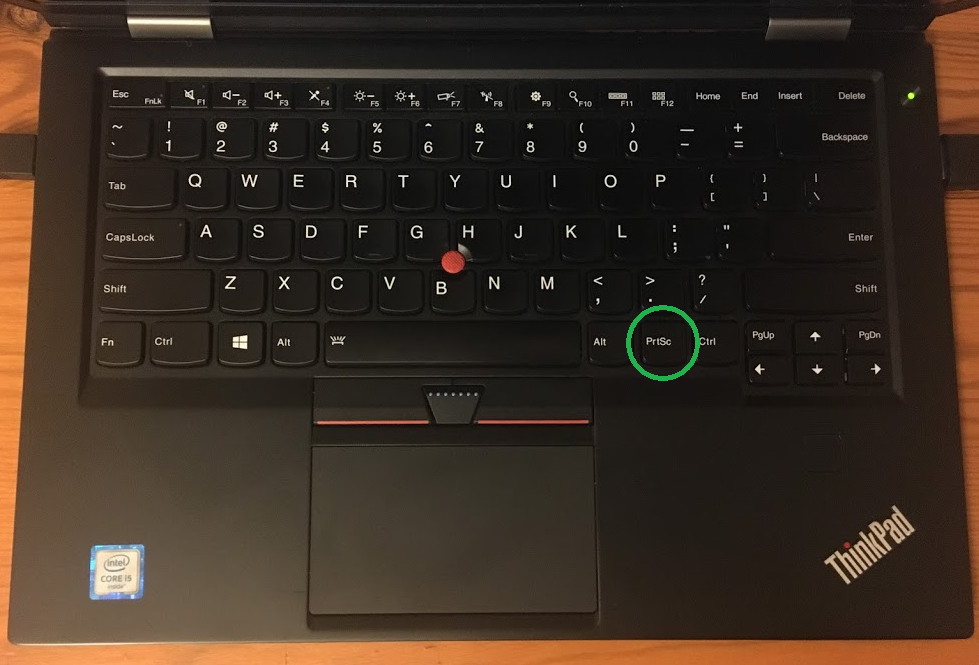
Steps
0- Setup
My setup is Windows 10. I do not know how this could be done on other operating systems, although I guess that it would be similar in any other Windows system.
1- Install AutoHotKey
AutoHotKey is an open-source software that lets you create your own scripts to do cool stuff with your keyboard or mouse. In other words, it’s exactly what we need. So the first step will be to install it. Please download and install it from here: https://autohotkey.com/
2- Create the script
Open Notepad and copy-paste this into a new file:
#NoEnv ; Recommended for performance and compatibility with future AutoHotkey releases. SendMode Input ; Recommended for new scripts due to its superior speed and reliability. SetWorkingDir %A_ScriptDir% ; Ensures a consistent starting directory.
; This script turns the Print Screen key into the Applications (Apps) Key
PrintScreen::AppsKey
Finally, save the file as PrtSc.ahk
3- Run the script
Your file should look like this:

To run it, simply double-click on it. You will see an icon appear on the bottom-right corner of your screen (near the clock).
Now try your new function, it should be working!
4- (Optional) Make the script run on startup
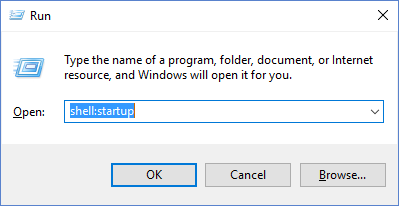
To make the script run everytime the computer starts, simply open the “Run” program by pressing Windows Key + R . On the prompt, write shell:startup and press OK.
A folder’s window will appear, where you will have to copy and paste the script.
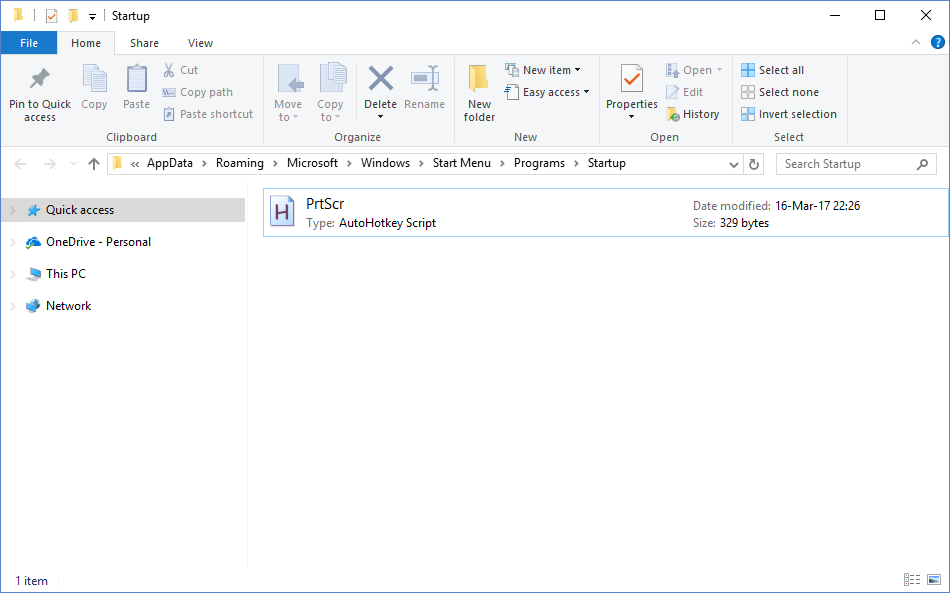
And it’s done! If you have any questions, please ask it on the comment’s section below.
Thank you =)